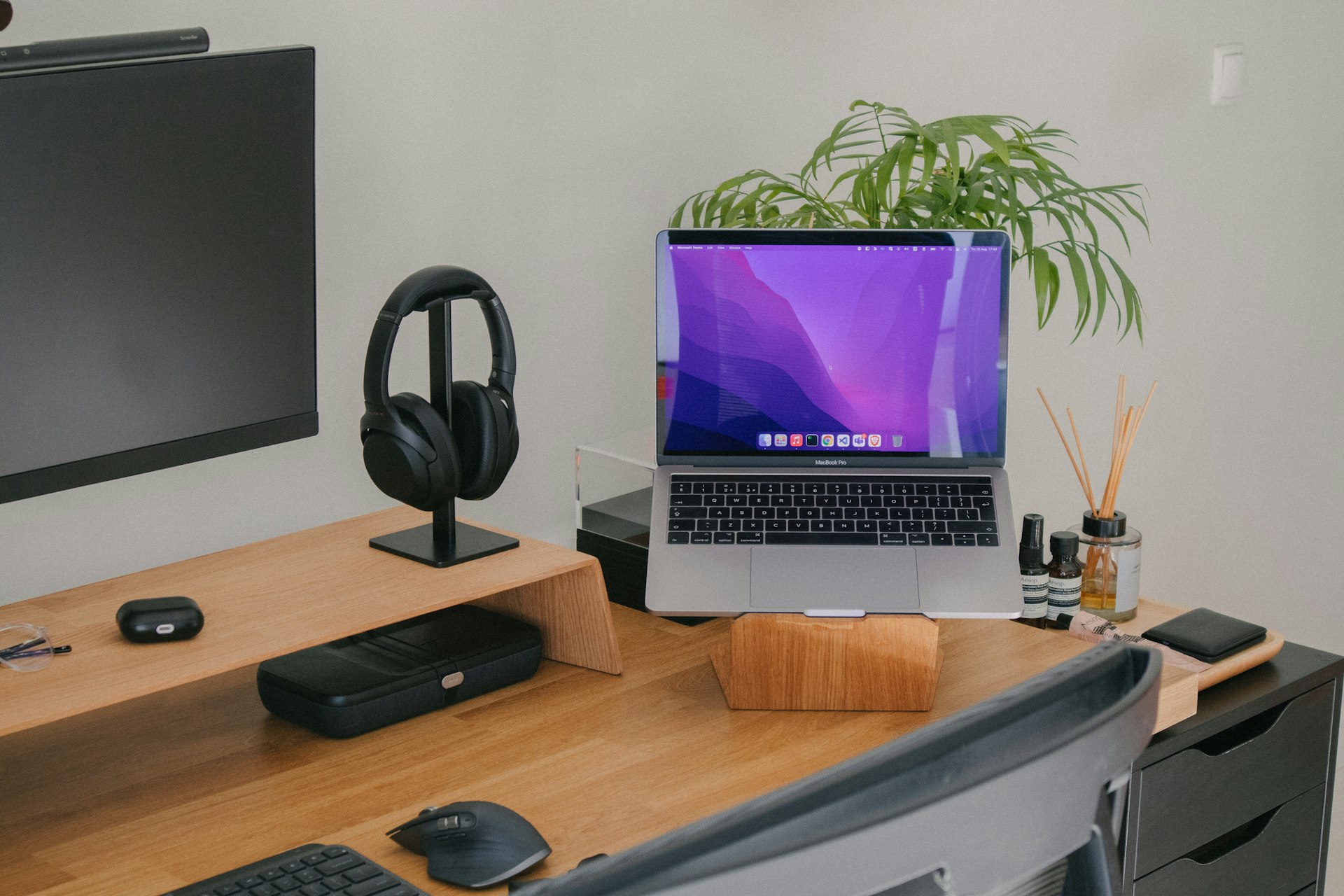
I just started a new role as a Staff Product Manager. Day one was approaching fast, and I had a blank MacBook Pro sitting on my desk. A 14-inch M4 Pro with 24GB of RAM and a 512GB SSD.
The question wasn’t what to install. It was how to set up a machine that lets a PM move at the speed of thought: writing PRDs to spinning up prototypes to jumping on a customer call, all without friction.
This is the guide I wish I’d had.
0
Tools Installed
0
Hour to Set Up
0
Excuses Left
The PM’s Dilemma
There’s a tension at the heart of every PM’s toolkit. You’re not an engineer, but you need to speak their language. You’re not a designer, but you need to give precise feedback. You’re not in sales, but you need to demo the product on the fly.
My philosophy is simple:
Be technical enough to prototype, clear enough to document, and fast enough to never block your team.
That means optimizing for speed, clarity, and collaboration, not engineering perfection. Every tool below earns its place by making me faster at one of three jobs:
- Writing. PRDs, specs, customer insights
- Building. Prototypes, MVPs, proof-of-concepts
- Communicating. Demos, presentations, async updates
The Machine
Hardware
MacBook Pro 14″ / M4 Pro
macOS Sequoia 15.4.1
Why does a PM need an M4 Pro? Because on any given Tuesday I’m running Docker containers, Figma with a 200-screen file, 40 browser tabs of customer research, a Zoom call, and a local AI model. All at once, without the fans spinning up.
First Things First: System Preferences
Before installing a single app, I spend 20 minutes dialing in macOS itself. These tweaks are small individually, but compound into a noticeably smoother experience.
Look & Feel
Dark mode, always. Auto-hide the Dock. Remove every app I won’t use daily. Show battery percentage. Turn on Night Shift for late writing sessions.
Notifications: The Great Silencing
I keep exactly three apps allowed to interrupt me: Calendar (meetings), Slack (team comms), and Linear (project updates). Everything else gets turned off. Context switching is the PM’s worst enemy.
Trackpad
System Settings → Trackpad. Max tracking speed. Enable Tap to Click. These two changes alone make the MacBook feel twice as responsive.
Mouse
If you’re using an Apple Mouse with your Apple Studio Display (or standalone), head to System Settings → Mouse. Enable Secondary Click and set it to Click Right Side. Right-click is essential for context menus everywhere, from Figma to the terminal.
Keyboard Shortcuts
System Settings → Keyboard → Keyboard Shortcuts → Spotlight: disable Spotlight’s Cmd+Space shortcut. We’re replacing it with something much better.
Finder
Open Finder, then go to Finder → Settings (Cmd+,). A few tweaks that save daily friction:
- General tab. Set “New Finder windows show” to Downloads
- Advanced tab. Check “Show all filename extensions” and set “Remove items from the Bin after 30 days”
- Desktop. Keep it completely empty. No files, no folders. If something’s on the desktop, it doesn’t have a home yet.
Security
Non-negotiable: FileVault ON (full disk encryption), Touch ID for everything. If you’re handling customer data, competitive intel, or roadmap docs (and you are), encryption isn’t optional.
Get a password manager. 1Password is my pick. It handles passwords, SSH keys, API tokens, and secure notes in one place. Bitwarden is a solid free alternative. Either way, stop reusing passwords and storing secrets in plain text files.
Terminal Tweaks
A handful of defaults write commands that macOS should ship with out of the box:
# Screenshots as JPG (smaller, good enough)
defaults write com.apple.screencapture type jpg

# Show hidden files, path bar, status bar in Finder
defaults write com.apple.finder AppleShowAllFiles YES
defaults write com.apple.finder ShowPathbar -bool true
defaults write com.apple.finder ShowStatusBar -bool true

# Unhide the Library folder
chflags nohidden ~/Library

killall Finder
The Foundation: Homebrew
Everything starts here. One command to install the macOS package manager that makes everything else possible:
/bin/bash -c "$(curl -fsSL \
  https://raw.githubusercontent.com/Homebrew/install/HEAD/install.sh)"
From this point on, installing software is just brew install or brew install --cask. No more dragging .dmg files around.
The App Stack
Here’s where things get opinionated. I split my apps into two categories: GUI apps I interact with visually, and terminal tools that power my command-line workflows.
GUI Apps: One Command
As of this writing, these are my current preferences. They change over time, so check the last updated date at the top.
brew install --cask \
  raycast google-chrome arc firefox \
  ghostty visual-studio-code cursor \
  figma notion linear-linear \
  slack discord zoom loom \
  cleanshot rectangle obsidian \
  tableplus postman docker \
  1password vlc maccy imageoptim
That’s 24 apps installed in under a minute. Let me walk through the ones that matter most.
Terminal Tools
brew install \
  git gh wget nvm pnpm yarn \
  jq tree htop tlrc bat \
  fzf ripgrep eza claude-code
These are the quiet workhorses. bat is a better cat. eza is a better ls. fzf is fuzzy finding for everything. tlrc gives you practical examples instead of man pages. ripgrep searches code faster than you can think of what to search for.
Deep Dives: The Tools That Changed My Workflow
Raycast: The Command Center
This is the single most impactful app on this list. Raycast replaces Spotlight with something that actually understands how you work.
Cmd+Space opens it. From there I can:
- Search files, apps, and bookmarks instantly
- View my calendar without opening Calendar
- Search Linear issues or Notion docs
- Manage windows without reaching for a mouse
- Access clipboard history (every URL, quote, and snippet I’ve copied today)
The Browser Trinity
I use three browsers, each with a distinct job:
Chrome is my primary. The dev tools are unmatched. Extensions: 1Password, uBlock Origin, React DevTools, JSON Viewer, Loom, Notion Web Clipper, Grammarly, and a design QA trio: ColorZilla, WhatFont, Page Ruler.
Arc is for research. Its Spaces feature lets me keep separate contexts (competitive research, customer interviews, documentation) without drowning in tabs.
Firefox Developer Edition is for cross-browser testing. Because “it works on Chrome” isn’t a shipping standard.
The Terminal: Ghostty + Oh My Zsh + Starship
The default Terminal app is fine. Ghostty is better. It’s fast, memory-efficient, and GPU-accelerated. Split panes, native macOS feel, and none of the bloat.
Layer on Oh My Zsh for plugin management and Starship for a beautiful, informative prompt:
# Oh My Zsh
sh -c "$(curl -fsSL \
  https://raw.githubusercontent.com/ohmyzsh/ohmyzsh/master/tools/install.sh)"

# Starship prompt
brew install starship
echo 'eval "$(starship init zsh)"' >> ~/.zshrc

# Hack Nerd Font (for icons in the prompt)
brew install --cask font-hack-nerd-font
Essential Plugins
Three plugins that make the terminal feel like it can read your mind:
- zsh-autosuggestions suggests commands as you type based on history
- zsh-syntax-highlighting colors valid commands green, invalid ones red
- zsh-completions smarter tab completion
These are custom plugins, so you need to clone them first:
git clone https://github.com/zsh-users/zsh-autosuggestions \
  ${ZSH_CUSTOM:-~/.oh-my-zsh/custom}/plugins/zsh-autosuggestions

git clone https://github.com/zsh-users/zsh-syntax-highlighting \
  ${ZSH_CUSTOM:-~/.oh-my-zsh/custom}/plugins/zsh-syntax-highlighting

git clone https://github.com/zsh-users/zsh-completions \
  ${ZSH_CUSTOM:-~/.oh-my-zsh/custom}/plugins/zsh-completions
Then add them to your plugin list in ~/.zshrc:
plugins=(
  git
  zsh-completions
  zsh-autosuggestions
  zsh-syntax-highlighting
  docker
  npm
)
My Aliases
These save me hundreds of keystrokes a day:
# Git (the ones I actually use)
alias gs="git status"
alias ga="git add ."
alias gc="git commit -m"
alias gp="git push"
alias gl="git lg"

# Navigation
alias projects="cd ~/Projects"
alias work="cd ~/Projects/work"

# Utilities
alias week="date +%V"
alias serve="python3 -m http.server 8000"
VS Code: The Writing & Coding Workhorse
Although a traditional IDE is needed less and less with AI-powered tools like Cursor and Claude Code handling most of the heavy lifting, I’m still using VS Code to manually review and update code. Honestly, I expect this section to be removed in the next six months.
For now, VS Code is where I spend a good chunk of my day. Not just for code. I use it for Markdown, JSON, YAML, meeting notes, and PRDs.
Extensions That Matter for PMs
Writing
- Markdown All in One
- Code Spell Checker
- Prettier
- Better Comments
Product Work
- GitLens
- TODO Highlight
- Project Manager
- Bookmarks
Development
- GitHub Copilot
- ESLint
- Error Lens
- Auto Close/Rename Tag
Productivity
- Auto Hide Sidebar
- FontSize Shortcuts
- Formatting Toggle
- Path Intellisense
Key Settings
A few settings that make VS Code feel like a focused writing environment, not an IDE:
{
  "editor.fontSize": 14,
  "editor.fontFamily": "Hack Nerd Font Mono",
  "editor.minimap.enabled": false,
  "editor.padding.top": 36,
  "workbench.colorTheme": "GitHub Dark Default",
  "workbench.sideBar.location": "right",
  "workbench.activityBar.location": "hidden",
  "files.autoSave": "afterDelay",
  "files.autoSaveDelay": 1000,
  "[markdown]": {
    "editor.formatOnSave": false,
    "editor.wordWrap": "on"
  }
}
Sidebar on the right. Activity bar hidden. Minimap off. Auto-save on. It’s a writing tool that happens to also run code.
The AI Layer: Cursor + Claude Code
This is the 2025 part. Two tools that didn’t exist in my setup a year ago, and now I can’t imagine working without them.
Cursor: AI-First Editor
For rapid prototyping and MVP development. When I need to go from “idea on a whiteboard” to “working prototype” in an afternoon, Cursor is where it happens.
- Generate boilerplate for proof-of-concepts
- Explain unfamiliar codebases I’m reviewing
- Draft API schemas and data models
- Turn a sketch into a functional component
Claude Code: The Terminal Agent
This is the tool that changed how I work. Claude Code lives in my terminal and handles complex, multi-step coding tasks autonomously. Currently running with Opus 4.6, it’s the best I’ve found for handling PRDs and building quick MVPs.
npm install -g @anthropic-ai/claude-codeWhat I actually use it for:
# Generate a PRD from rough notes
claude "Create a comprehensive PRD for 'user-authentication'
  with problem statement, user stories, success metrics,
  and technical considerations"

# Analyze customer feedback
claude "Analyze this feedback file. Extract themes,
  pain points, feature requests, and sentiment"
  customer-feedback.txt

# Scaffold a prototype
claude "Build a landing page with hero, features,
and CTA using Tailwind CSS"The Supporting Cast
These tools don’t get the headlines, but they keep everything running smoothly.
Notion
Documentation hub. PRD templates, meeting notes, customer interview databases, competitive analysis. The single source of truth for everything written.
Obsidian
Personal knowledge management. Local-first, Markdown-based. Where I build my “second brain”: daily notes, product insights, reading notes, patterns I notice across customer calls.
Figma
Design collaboration. Review designs, create quick wireframes, annotate with feedback, prototype simple flows. Learn the shortcuts: C for comments, V for move.
Linear
Issue tracking that doesn’t feel like punishment. Keyboard-driven, fast, beautiful. C to create, / to search. Custom views per project.
CleanShot X
Screenshots and screen recording that’s better than macOS built-in in every way. Annotate instantly, record GIFs for bug reports, scrolling capture for long pages.
Loom
Async video for remote PMs. Share product demos, give design feedback, explain complex concepts, all without scheduling a meeting.
Rectangle + Maccy
Window management via keyboard (Ctrl+Opt+arrows) and clipboard history (Cmd+Shift+V). Small tools, massive time savings.
Docker Desktop
Containers for local development. Run databases, APIs, and full-stack apps without polluting your system. It’s the quickest way to get a reproducible dev environment. Worth noting: if your team runs Kubernetes in production, Rancher Desktop (free, ships with k3s) might be a better fit. Podman is another solid alternative if you want something lighter and daemonless.
TablePlus + Postman
Database GUI and API testing. For when you need to verify metrics, understand data models, or test endpoints yourself. Read-only production access is your friend.
Developer Essentials: Git, SSH & Node
Even as a PM, these are non-negotiable. You need to clone repos, review PRs, and run prototypes locally.
Git Configuration
git config --global user.name "Murat Karslioglu"
git config --global user.email "your-email@company.com"
git config --global init.defaultBranch main

# A beautiful git log
git config --global alias.lg "log --color --graph \
  --pretty=format:'%Cred%h%Creset -%C(yellow)%d%Creset \
  %s %Cgreen(%cr) %C(bold blue)<%an>%Creset' \
  --abbrev-commit"
SSH for GitHub
ssh-keygen -t ed25519 -C "github"
ssh-add --apple-use-keychain ~/.ssh/github

# Add to GitHub with the CLI
gh auth login
gh ssh-key add ~/.ssh/github.pub -t github
Node.js for Prototyping
# Install via NVM (version manager)
nvm install --lts
node -v && npm -v

# Global tools for quick prototyping
npm install -g serve http-server \
json-server netlify-cli vercelThe Workflows That Tie It All Together
Tools are nothing without workflows. Here are the three I run on repeat.
The Morning Routine
pmsetupin the terminal: starts Docker, opens Notion, Linear, Slack- Cmd+Space → “cal” to review today’s meetings in Raycast
- Check Linear for overnight updates
- Open Daily Note in Obsidian
- Start working on the highest-impact item
The Documentation Flow
Customer call → Loom recording → transcribe with Otter.ai → extract insights into Notion → synthesize patterns in Obsidian → update the PRD
Every insight has a clear path from conversation to product decision.
The Prototype Flow
Sketch in FigJam → mockup in Figma → build in Cursor or with Claude Code → deploy to Vercel → share a Loom walkthrough
From idea to deployed prototype, tested with real users, in a single day.
The Folder Structure
Simple, predictable, and hard to mess up:
~/Projects/
├── work/            # Company projects
│   ├── docs/        # Internal documentation
│   ├── prototypes/  # Quick MVPs
│   └── research/    # Customer interviews, analysis
├── blog/            # Personal blog
├── learning/        # Courses, tutorials
└── personal/        # Side projects
Everything has a home. Nothing lives on the Desktop.
Keeping It Running: Maintenance
A setup is only as good as its maintenance. I follow a simple cadence:
Weekly: brew update && brew upgrade, clear Downloads, archive old Notion pages, push Obsidian vault to GitHub.
Monthly: Update VS Code extensions, remove unused apps, clear browser caches, npm update -g.
Quarterly: macOS system update, audit installed apps, review security settings, clean up SSH keys.
Backup strategy: Code lives on GitHub. Documents in Notion + Google Drive. Personal notes in Obsidian (synced to GitHub). Passwords in 1Password. Config files in a dotfiles repo. Time Machine to an external SSD for everything else.
Your First Week Checklist
If you’re starting a new PM role, here’s what to get done in week one:
- All system access: Slack, Linear/Jira, Figma, Notion, repos
- SSH keys configured, VPN set up
- Dev environment tested. Can you clone and run the product locally?
- First PRD template created in Notion
- Met with your engineering lead
- Reviewed the product roadmap
- Set up your customer feedback pipeline
The Bottom Line
This setup takes about an hour from a blank MacBook to a fully operational PM workstation. It balances three things:
Technical
Build MVPs, understand the stack, speak the team’s language
Clear
Write PRDs, present effectively, document thoroughly
Fast
Minimal friction, zero context switching, great tools
Tools don’t make you a great PM. Solving customer problems does. But great tools let you move faster and think clearer.
Now close this tab and go set up your machine.